Configurations Introduction
Developing comprehensive workflows often requires creating multiple variations of the same workflow with different configuration options. For instance, you might need to run a workflow using different AI models, prompts, or other model parameters. Workflow Configurations provide a streamlined way to define and manage these settings, either through a Configuration UI or a configuration file. These configurations integrate seamlessly into your task implementation, allowing workflows to run with varied settings and supporting experimentation.
Creating Configurations
We offer two methods for creating configurations for your workflow:
Using the Configuration UI
- Navigate to the CMS Cards page for your environment and click Create Card:
- Enter a name for your configuration.
- Provide a unique ID in the Content Key field (e.g.,
example-task-variant1). - Select Pluggable Task Generic Form as the form type.
- You can also create a custom form to define your own field layout instead of using the generic form. Learn more here.
- Add your task's JSON configuration in the Config field. Example:
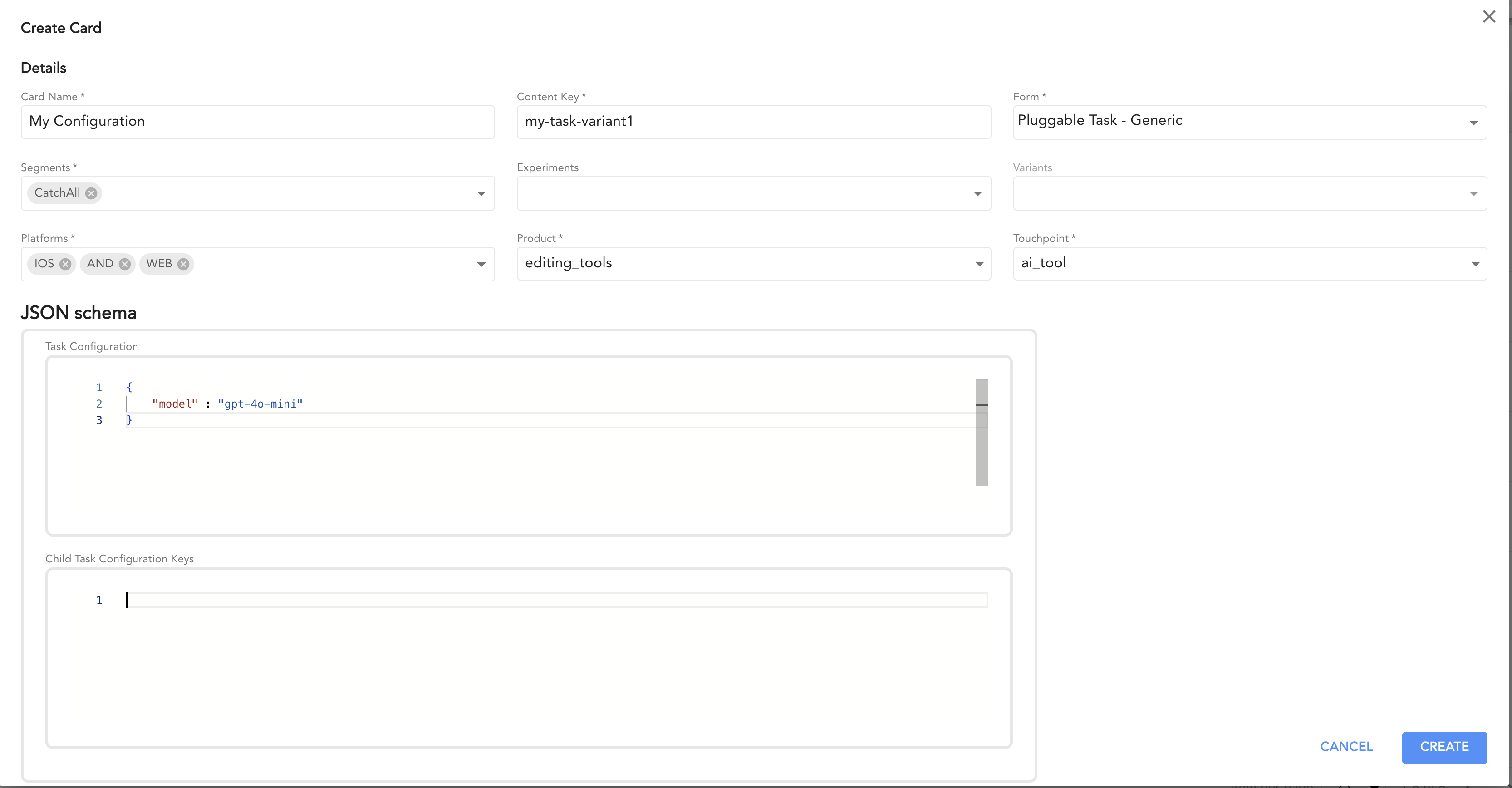
Using a Config File in the Worker Repository
- Create a configuration file at the following path:
src/config/tasks/{task-executor-name}.yaml
When defining versioned task executors, use the same path, but replace all / characters in the task name with - to form the file name.
Examples
| Task executor name | Configuration file path |
|---|---|
example-task/v1 | src/config/tasks/example-task-v1.yaml |
ideogram/photo/realistic/v2 | src/config/tasks/ideogram-photo-realistic-v2.yaml |
photo/gemini/resize/high | src/config/tasks/photo-gemini-resize-high.yaml |
- Add your configuration, using the configuration ID as the key. Example:
example-task-variant1:
  config:
    model: gpt-4o-mini
example-group-v2-example-task:
  config:
    model: gpt-4o-pro
The default configuration key follows the pattern {task-executor-name}-default. For example, for a task named
example-task, the configuration would be:
example-task-default:
  config:
    model: gpt-4o-mini
In the same file you can also define a {task-executor-name}-fallback key. It acts as a safety net: when a requested
configuration ID is not found in CMS and is not a key in this file, the task uses the fallback configuration instead of
failing.
example-task-fallback:
  config:
    model: gpt-4o-mini
Accessing Configurations in Your Task Executor
You can retrieve the configuration within your task implementation by calling flow.config(). Here's an example
@Executor("example-task")
export class ExampleExecutor implements TaskExecutor {

   async processTask(
           exampleCommand: ExampleCommand,
           meta: TaskMetadata,
           flow: Flow
   ): Promise<ExampleResponse> {
      // Retrieve the configuration
      const config = await flow.config().get();

      // Use the configuration in the response
      return {
         result: `Using model ${config.model} !!!`
      };
   }
}
flow.config() requires @picsart/pa-pluggable-workers-core 7.35.0 or higher. The property form
(flow.config.get(), flow.config.withFieldParams(), flow.config.applyPlaceholders()) still works but is deprecated
and will be removed in the next major version.
To know which configuration was loaded — for example to log it or tag metrics with it — read
flow.meta().configId(). It returns the resolved ID, {task-executor-name}-default when the
request named none.
How the Configuration Is Resolved
When your task calls flow.config().get(), the configuration is resolved in this order:
- A
configobject was sent in the request body → it is used as-is. Nothing else is checked. - Otherwise, the task takes its config ID — from the
x-config-idheader, or{task-executor-name}-defaultwhen the header was not sent — and looks it up:- in CMS;
- if not found in CMS — in the worker's own config file (
src/config/tasks/{task-executor-name}.yaml), first under the requested ID, then under the{task-executor-name}-fallbackkey; - if none of these exist, the task fails with
config_not_found.
The same order applies everywhere a configuration is resolved — root tasks and sub-tasks alike.
Declaring the config schema with @ConfigModel
@ConfigModel("<task-name>") marks a class as the schema for the per-request config a task accepts. When a caller passes a config the framework validates it against this model using class-validator and publishes it in the OpenAPI schema.
@ConfigModel("example-task")
export class ExampleConfig {
    @ApiProperty()
    @IsString()
    public model: string;
}
If a task has no @ConfigModel registered, any request carrying a config is rejected with invalid_request.
API
When calling to Workflows API you can choose the desired configuration by passing x-config-id header.
Example:
curl --location '$HOST/workflows/example-workflow/submit' \
--header 'Content-Type: application/json' \
--header 'x-config-id: example-task-variant1' \
--data '{
    "params": {
    }
}'
Subtask Configuration
When building workflows, you may need to configure not only the top-level task but also any nested subtasks it triggers. Subtask configuration enables fine-grained control over each nested task's behavior while preserving a clear, hierarchical structure.
This approach makes it easy to reuse task implementations with different settings and allows parent tasks to dynamically influence their subtasks.
Passing Config to Sub-tasks at Runtime
When triggering a sub-task, you can choose which configuration it runs with. There are two ways:
config— send a ready configuration object together with the call. The sub-task uses exactly what you sent:flow.config().get()returns this object.configId— send only the ID of a configuration that is already defined for the sub-task (in CMS or in its config file). The sub-task looks it up by that ID and uses it — the same way it would for anx-config-idheader.
Use one or the other, not both — a call with both fails with invalid_request.
How the sub-task finds its configuration
The sub-task resolves its configuration in the same order as a root task (see How the Configuration Is Resolved):
- A
configobject came with the call → it is used as-is. Nothing else is checked. - Otherwise, it takes the config ID — the
configIdfrom the call, or{commandName}-defaultwhen none was sent — and looks it up:- in CMS;
- if not found in CMS — in the sub-task worker's own config file (
src/config/tasks/{command}.yaml), first under the requested ID, then under the{command}-fallbackkey; - if none of these exist, the sub-task fails with
config_not_found.
When to use which: use configId when the configuration already exists in CMS or in the sub-task's config file —
the call stays small and configurations stay centrally managed. Use config when the parent task builds the
configuration dynamically at runtime. Keep in mind that config requires the sub-task to declare a
@ConfigModel; configId does not.
Sync sub-tasks (executeTask)
Pass either option inside ExecuteOptions:
// Inline config
const result = await flow.executeTask(
    'sub-task',
    { text: 'hello' },
    {
        config: { model: 'gpt-4o', count: 100 }
    }
);

// Config ID resolved by the sub-task worker
const result = await flow.executeTask(
    'sub-task',
    { text: 'hello' },
    {
        configId: 'sub-task-variant1'
    }
);
Stream sub-tasks (streamTask)
Pass either option inside StreamOptions:
const stream = flow.streamTask(
    'sub-task',
    { text: 'hello' },
    {
        config: { model: 'gpt-4o' }
        // or: configId: 'sub-task-variant1'
    }
);
Async sub-tasks (deferred execution)
Pass either option via DeferredTaskOptions:
return flow.defer()
    .withTask('sub-task-1', { text: 'hello' }, {
        config: { model: 'gpt-4o' }
    })
    .withTask('sub-task-2', { text: 'world' }, {
        configId: 'sub-task-2-variant1'
    })
    .continueOn('onSubTasksCompleted');
Sub-task options (flow.options())
flow.options() accepts the same choice, so a sub-task quote is resolved against the same configuration the
execution would use:
const options = await flow.options('sub-task', { text: 'hello' }, { configId: 'sub-task-variant1' });